


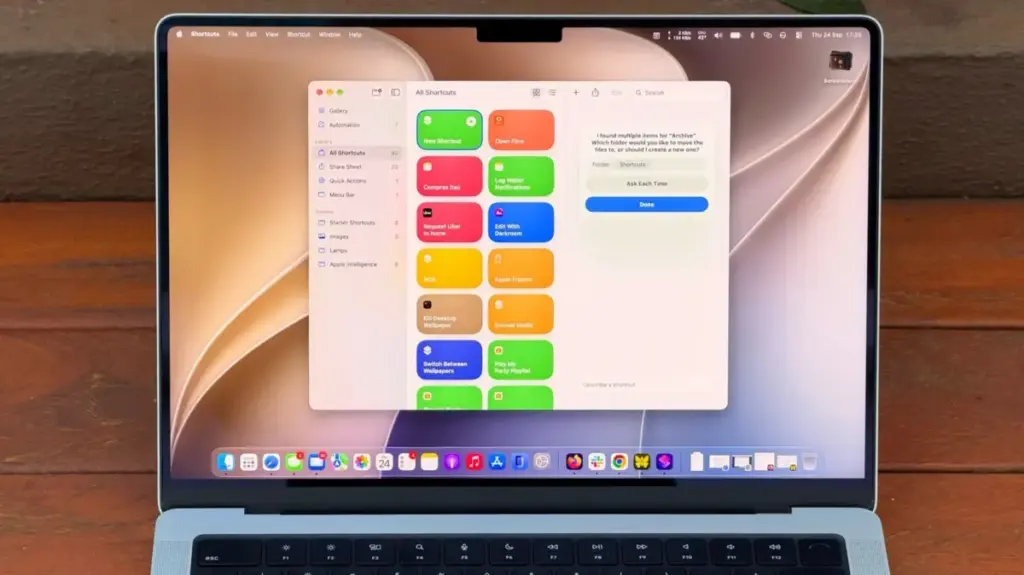
For years, Apple’s Shortcuts application has lived in a peculiar space within the macOS ecosystem. First introduced alongside macOS Monterey, the utility was designed to bring powerful task automation to desktop users, mirroring the success of similar features on iOS and iPadOS. Yet, despite its immense potential, it frequently remained an underutilized tool, often overlooked by everyday users who found the initial learning curve too steep. Building effective automations traditionally required a meticulous understanding of specific actions, precise parameter configurations, and complex logical chains—turning what should have been a time-saver into a frustrating trial-and-error exercise.
That dynamic is shifting dramatically with the release of macOS 27 Golden Gate and the integration of Apple Intelligence. Central to this update is a new capability known as "Describe a Shortcut," a feature designed to bridge the gap between user intent and execution. By leveraging artificial intelligence to interpret natural language prompts, the utility allows users to simply type out what they want to achieve in plain English and let the system handle the heavy lifting of building the script behind the scenes.
While the AI-powered builder is not infallible and occasionally requires refined prompting, it fundamentally changes the accessibility of the application. Users no longer need to possess a background in scripting or a deep familiarity with the app’s extensive library of individual actions to automate their daily workflows.
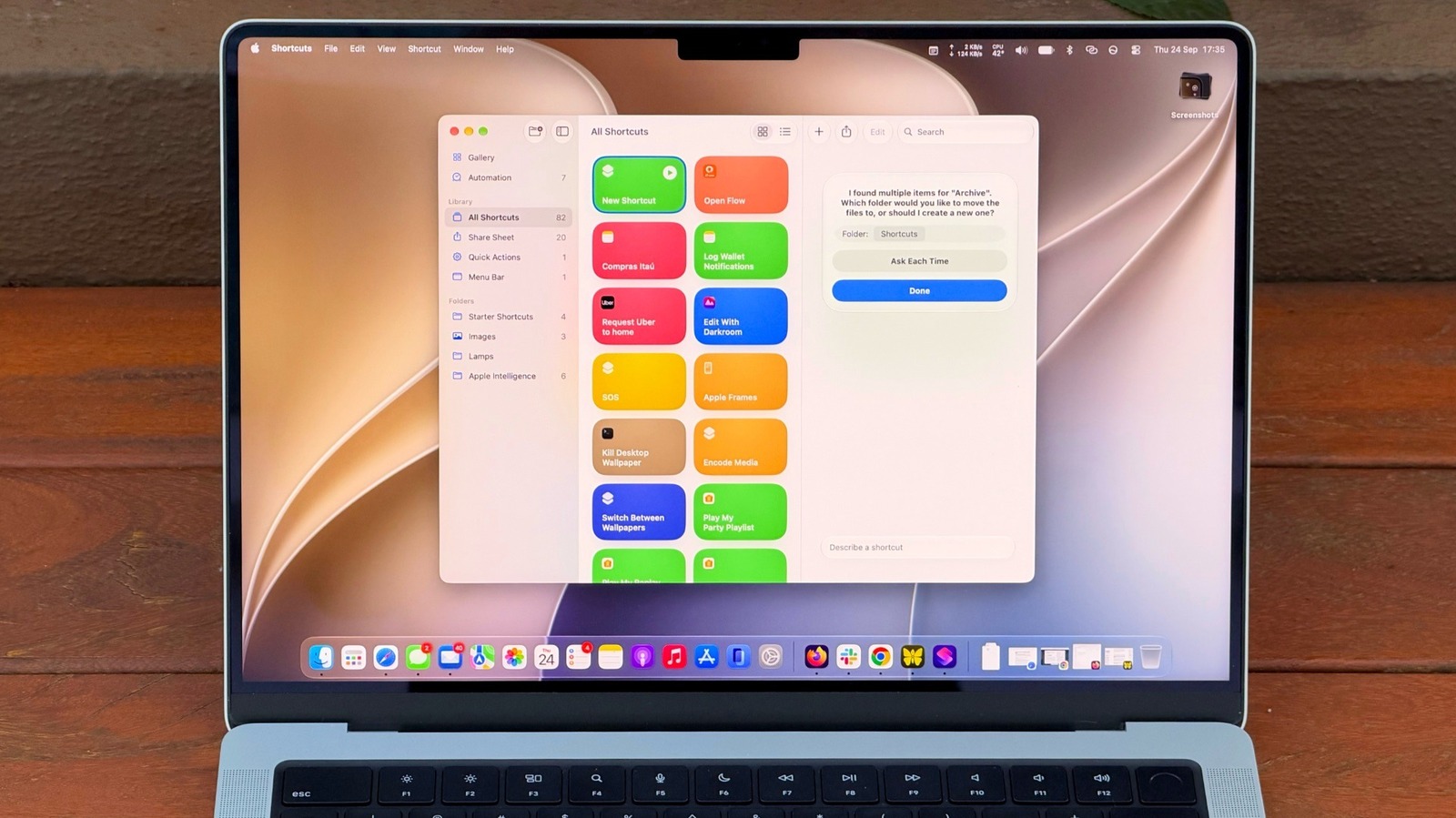
At its core, the Shortcuts app functions as a digital assistant capable of executing multi-step scripts to streamline computer operations. Apple has long championed basic examples, such as calculating estimated travel times based on live traffic data and automatically messaging a spouse when leaving the office. However, the true strength of the platform lies in its ability to handle more sophisticated tasks, such as cross-referencing calendar entries with current weather forecasts to generate a personalized morning briefing.
With the arrival of macOS 27, mastering these capabilities has become significantly more intuitive, encouraging a broader segment of the Mac user base to finally explore the utility’s potential.
Creating shortcuts on your Mac is easy
Developing a new automation no longer requires navigating a maze of menus. Opening the native application and clicking the primary creation button reveals a text prompt awaiting instructions. Apple’s underlying AI models parse these inputs, meaning the level of detail provided directly impacts the accuracy of the generated result. Broad, ambiguous commands like a simple request to tidy up a directory often lack the necessary context for the system to understand the user’s specific goals.
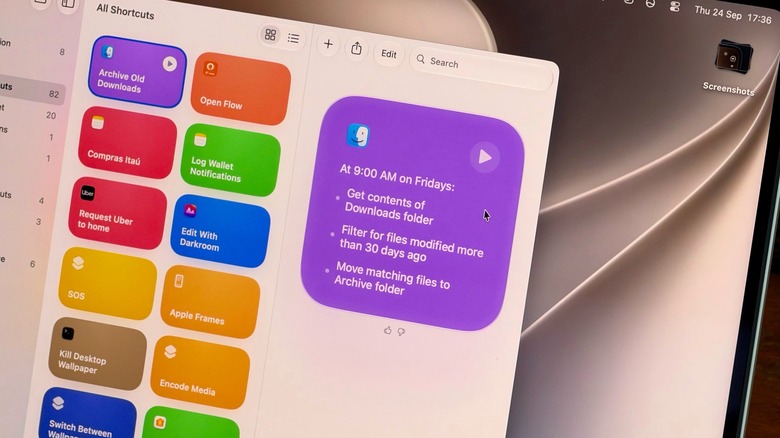
Instead, providing concrete parameters—such as instructing the system to review a specific folder weekly and relocate files older than a designated timeframe into a designated archive—yields far more reliable outcomes. This specific workflow highlights the practical utility of modern automation, addressing common digital maintenance tasks that users typically neglect until storage space becomes an issue. Users can immediately verify the success of the script by inspecting the affected directories, refining their initial prompts if the automation proves overly aggressive or fails to capture the intended scope.
Beyond file management, the integration of Apple Intelligence enables complex text-handling capabilities. Users can construct automations designed to capture clipboard contents, distill long-form text or email threads down to concise summaries, and automatically export those insights into the Notes application. By running the script immediately after copying a lengthy document, individuals can bypass the tedious process of manual reading and note-taking.
Make your shortcuts easier to reach
An automation that is difficult to access quickly fades from a user’s routine. To counter this, macOS provides multiple avenues for bringing workflows to the forefront, allowing individuals to integrate their custom scripts directly into their daily computer interactions through keyboard shortcuts or menu bar integration.
Customizing the accessibility of any given workflow involves accessing the application’s details menu via the interface’s information icon, where users can assign dedicated key combinations. Furthermore, workflows can be integrated directly into the system’s Control Center or pinned to the top-right menu bar for immediate execution. Delving into the built-in automation tab also opens the door to trigger-based workflows that run automatically in the background based on specific system events or schedules.
The broader macOS 27 ecosystem further extends these capabilities through Visual Intelligence, which features its own dedicated key combination for on-screen interaction. By pressing specific modifier keys and selecting an active window, users can prompt Siri to answer contextual questions or initiate automated tasks, such as extracting a buried date from an incoming email and adding it directly to a calendar. Siri is also fully equipped to execute previously saved scripts entirely via voice commands.
These advanced AI features, including Shortcuts integrated with Apple Intelligence, require modern hardware. The functionality is restricted to Mac models powered by an M1 chip or later, meaning users relying on older Intel-based hardware cannot access these updates. Additionally, while the system simplifies the creation process, users working with exceptionally complex prompts may occasionally encounter processing limits inherent to the current generation of Apple’s on-device and cloud-based AI models.