



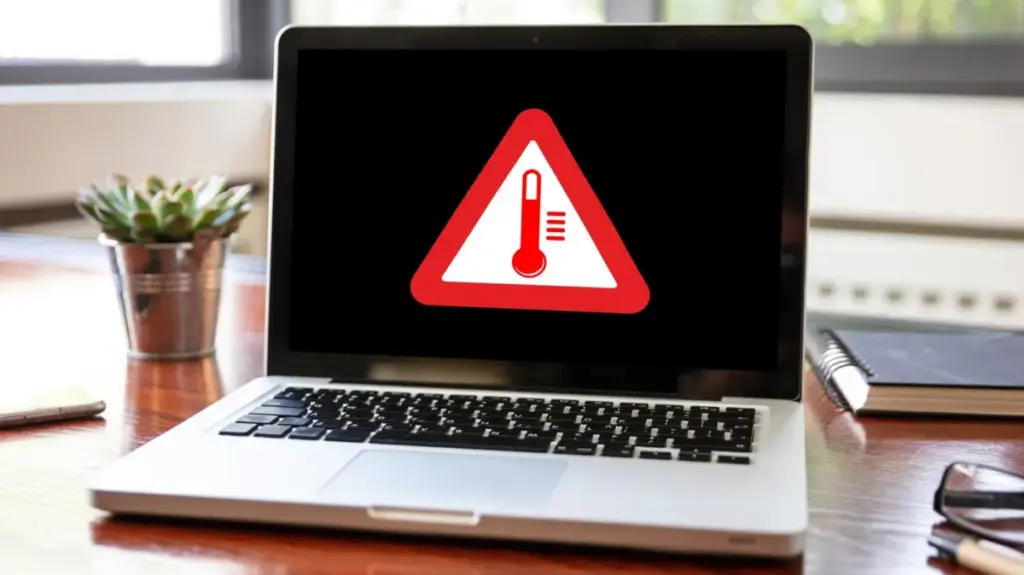
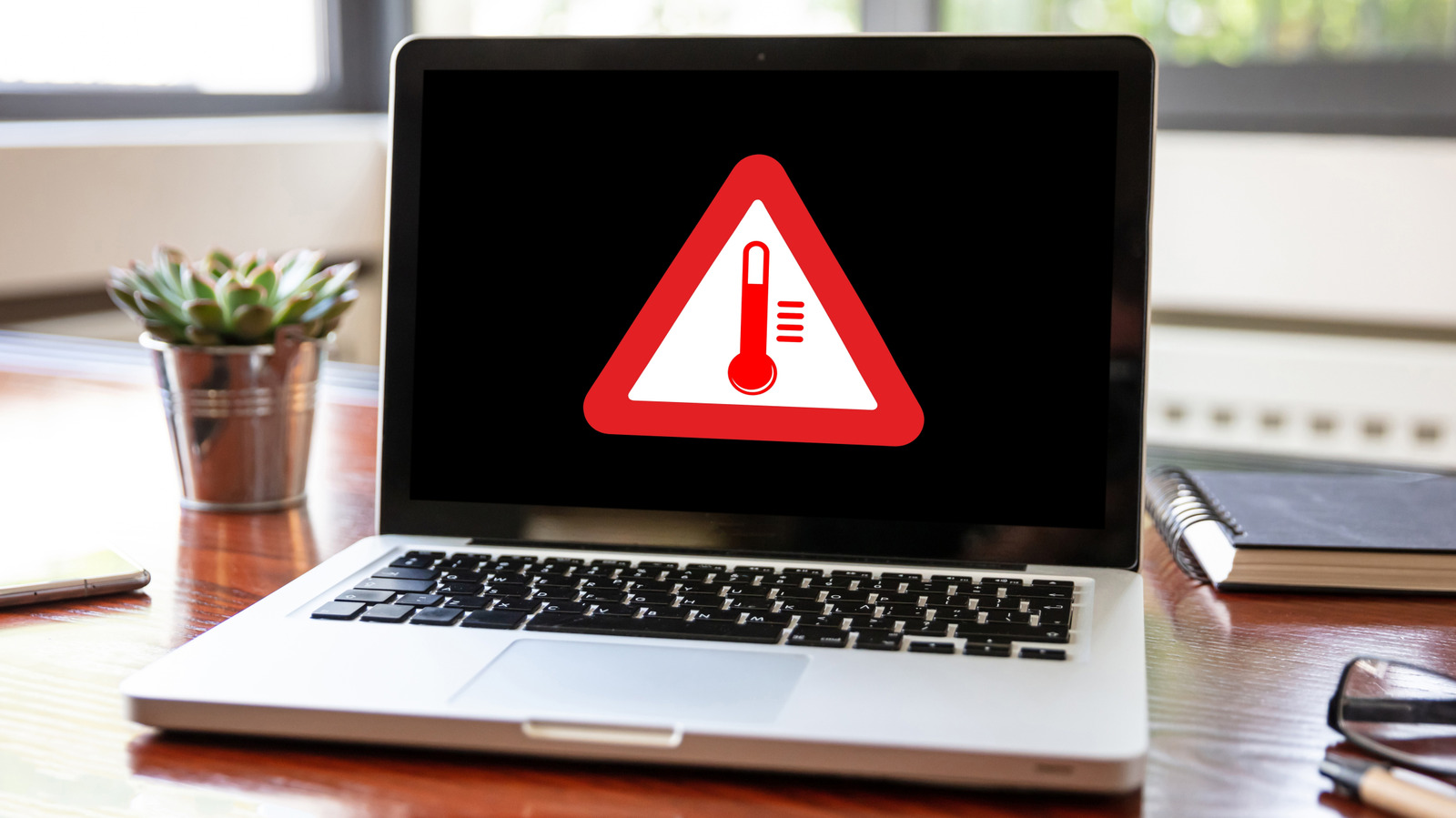
Laptops generate heat. It is a fundamental law of physics that you simply cannot avoid, even with the most energy-efficient models on the market. To keep internal components from melting down, your laptop fans are engineered to kick into action whenever you are pushing the system hard—such as during high-end gaming or heavy video rendering. By design, most modern laptops ship with adjustable fan speeds meant to keep internal temperatures cool without creating an unbearable amount of ambient noise. Normally, once the intense workload ceases, you would expect those fans to quiet down significantly, even if they do not stop spinning entirely.
However, that ideal scenario is not always what users experience. Many laptop owners find themselves listening to a sudden, aggressive roar from their cooling systems even when all applications have been closed and the computer is sitting completely idle on a desktop. While power settings
and operating system profiles certainly play a role in this behavior, physical obstructions like dust and debris clogging up the chassis are equally common culprits. Understanding whether this unexpected noise is a normal reaction to background processes or a sign of an underlying mechanical failure is crucial for keeping your machine healthy over the long term.
Your Laptop Is Always Working in the Background
Simply closing active windows on your desktop does not mean your laptop has stopped working. Applications frequently run in the background, executing processes and performing tasks under the hood without the user ever realizing it. These hidden operations continuously place demands on your processor, RAM, and storage drives. Because increased power consumption naturally generates more heat, the system calls upon the cooling fans to spin faster to dissipate the thermal energy.
Major hardware manufacturers like Dell routinely recommend reviewing startup applications to keep systemic loads down on the central processing unit, which helps prevent fans from spinning up unnecessarily. Users can review these background processes on Windows machines via the Task Manager by pressing the standard shortcut keys to access startup applications and disabling anything non-essential.
Other vital maintenance tasks will place demands on your computer while you are away from the keyboard or performing light tasks. Operating system updates frequently trigger heavy background activity, as does search indexing, a process that catalogs your files so that you can easily search for them later. According to documentation from Microsoft, that initial indexing process can take several hours to complete. MacBook users face a similar reality, relying on built-in utilities like the Activity Monitor to identify which background applications are consuming the most processing power and driving up thermal output.
Your Power Settings Might Favor Performance Over Quiet
Imagine a delicate set of scales that can be tipped one way or another or kept in a state of perfect balance. Your laptop’s power settings operate in much the same fashion. On a standard Windows laptop, users can switch easily between modes that prioritize energy efficiency, raw performance, or a carefully calibrated balance between the two. The most aggressive performance option will always prioritize maximum computing speed over saving power or keeping decibel levels low.
This aggressive profile allows for significantly higher power consumption under load, which consequently produces more heat and makes the cooling fans far more likely to kick into high gear. These settings can be adjusted through the main system settings menus, and the behavior often changes dynamically depending on whether the laptop is plugged into a wall outlet or running purely on battery power.
Furthermore, many laptops come pre-installed with proprietary manufacturer applications that allow users to override standard operating system cooling profiles. Some high-end machines ship with ultra-performance modes that increase processing power alongside maximum fan speeds, while quiet modes reverse the priority at the expense of allowing internal temperatures to rise during heavy use. Determining the best setting requires experimentation, matching the power profile to the specific task at hand—reserving high-performance modes for demanding applications while utilizing energy-efficient modes for lighter tasks like typing documents.
Heat Can Build Up Even During Light Use
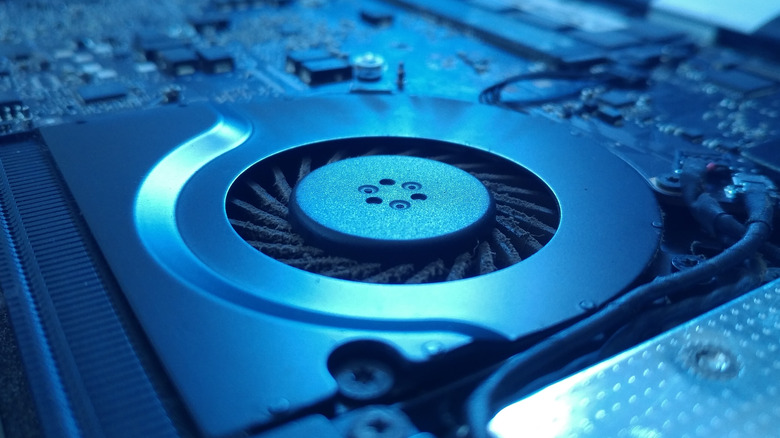
The amount of active computational work you are performing on your laptop is only part of the equation when it comes to thermal management. Your immediate physical surroundings can have a profound impact on hardware temperatures. Apple and other major manufacturers note that higher ambient room temperatures will force cooling fans to spin up sooner and run at much higher speeds. A warm room makes it inherently more difficult for a laptop to shed heat, resulting in fan behavior that looks vastly different from a machine operating in a climate-controlled, cooler space.
Beyond ambient air temperature, the physical placement of the laptop is critically important because adequate ventilation is required for fans to lower internal temperatures effectively. Working with a laptop resting on a soft surface like a bed or a couch is notoriously bad for air circulation. When airflow is restricted around the intake and exhaust vents, internal temperatures rise rapidly, forcing the fans to work harder and harder to compensate for the trapped heat.
A hard, flat desk provides a much better environment for proper ventilation, and elevating the rear of the laptop slightly can expand the clearance needed for air to flow freely. Side and rear openings must remain entirely unobstructed to ensure optimal thermal performance.
Compounding these environmental factors is the inevitable accumulation of dust and dirt over time. Cooling fans do not just circulate air; they draw in microscopic airborne particles that gradually build up around the vents, inside the cooling fins, and directly on the fan blades. This buildup raises the thermal baseline of the machine, meaning fans must work progressively harder even when performing routine, low-impact tasks. Periodic maintenance using a can of compressed air can help clear away blockages, though more thorough cleaning occasionally requires removing the bottom chassis panel.
Persistent Fan Noise Might Need Further Investigation
Adjusting system software settings and cleaning out exterior dust vents do not always serve as a magical fix for noisy hardware. If cooling fans continue to spin aggressively even when the laptop is idle, a deeper investigation into the machine’s health may be required.
Hardware issues should never be entirely ruled out. When routine maintenance has been neglected for too long, users may begin to hear persistent grinding or rattling noises, which typically point to a worn-out, misaligned, or mechanically damaged fan bearing. Simple cleaning will not resolve a physical hardware failure. In such cases, checking warranty coverage or replacing the faulty fan assembly becomes necessary.
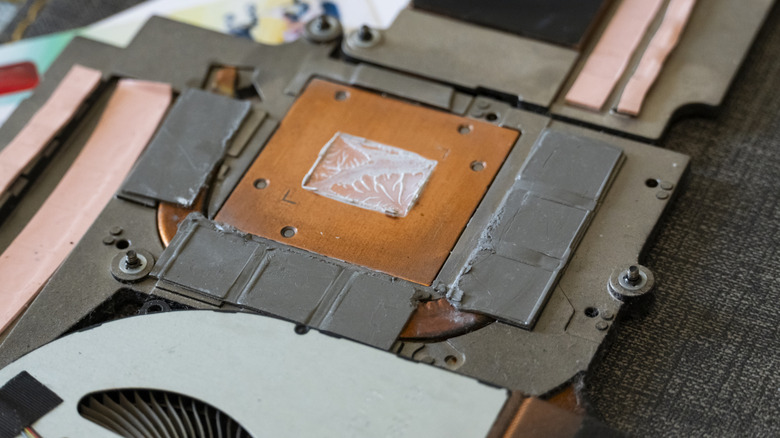
At the same time, software anomalies must be addressed. Ensuring that the system BIOS is fully up to date, alongside manufacturer-issued utility apps and critical chipset and graphics drivers, is essential since the graphics processing unit heavily influences overall fan speeds. Mac users dealing with unexpected heavy fan usage on older Intel-based architectures have historically relied on resetting the System Management Controller, while modern Apple Silicon machines generally require little more than a simple restart or a power cycle.
Manufacturers often include built-in diagnostic tools to test hardware functionality directly. Certain laptops feature preboot diagnostic routines accessible by tapping a designated function key during startup, allowing users to run dedicated fan tests to verify mechanical integrity. When a laptop is not actively overheating and the noise level remains within reasonable bounds, intermittent fan activity is entirely normal. However, persistent whining, grinding, or loud roars during light use signal that a closer inspection of settings, cleanliness, and hardware condition is warranted.