

Personal computer gamers have long prided themselves on flexibility and performance customization that far surpasses what is available on standard home consoles. From tweaking niche graphical presets and native output resolutions to enabling advanced rendering techniques like ray tracing, the PC platform offers unrivaled control over how games look and feel. However, achieving that buttery-smooth frame rate—whether targeting a stable 60 frames per second or pushing past 120 fps for high-refresh-rate monitors—traditionally meant opening your wallet.
While many users have navigated hardware cycles by panic-buying components to avoid shortages or price spikes, the fiscally sensible player does not need to obliterate their bank balances on a brand-new graphics processing unit or upgraded memory modules to experience high-performance gaming. Instead, optimizing an existing system often comes down to simple software tweaks, managing background processes, and knowing which heavy graphical enhancements to dial back or disable entirely.
Before diving into complex rendering settings, optimizing performance always begins with foundational system hygiene. Closing resource-heavy background applications prevents unnecessary competition for the random-access memory and processing power that your game desperately needs. Similarly, physically cleaning out a gaming rig if it has been collecting dust for a while can yield surprising results. Excess dust inside a PC chassis forces cooling fans to work harder and less efficiently to maintain safe temperatures, preventing the system from deploying its full thermal and electrical potential toward raw gaming performance.
Lower Graphics Settings and Tweak Power Options
Once the basics are out of the way, the next logical step involves diving into in-game menu systems to reassess graphical presets. Texture quality, shadow resolution, and advanced post-processing effects like ambient occlusion place a tremendous strain on a GPU when sliders are pushed to their absolute maximum. For players struggling to lock down a stable frame rate, reducing these specific features to medium or low presets offers an immediate performance return without drastically degrading the visual experience.
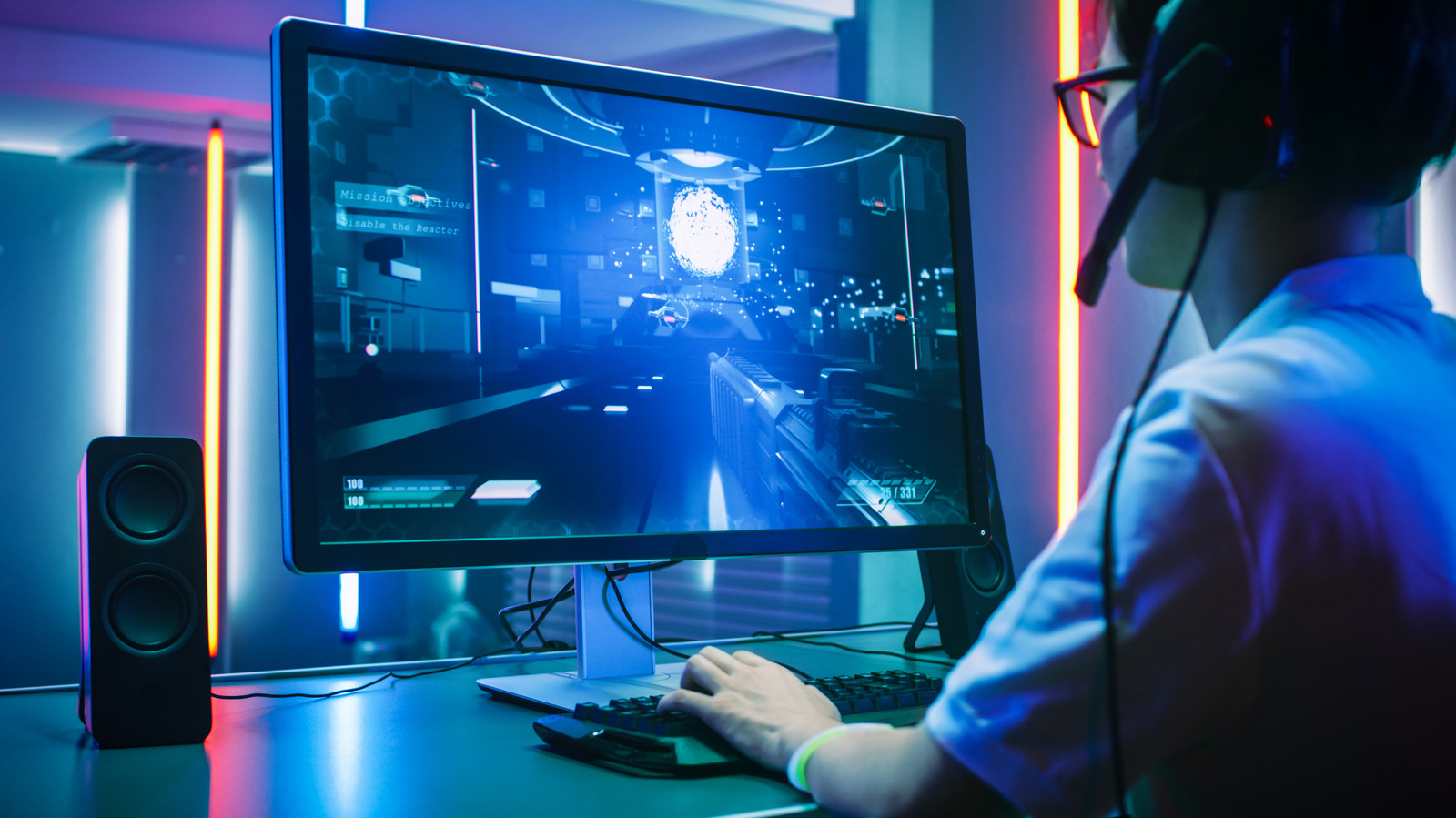
Additionally, disabling motion blur and in-game vertical synchronization can help minimize input lag, while capping frame rates through official control panels like the NVIDIA Control Panel or AMD Radeon software helps prevent unwanted screen tearing. The visual difference between high and low settings in many modern titles is frequently negligible during fast-paced action sequences. Unless a player is obsessively focused on pixel-peeping, settling for a less demanding preset is a wise strategy for anyone craving a locked 60 fps, as there remains a direct inverse relationship between raw graphics quality and sustained performance.
Many modern titles now feature auto-detect optimization wizards upon their initial boot, calculating a player’s underlying hardware profile to automatically apply balanced settings. This takes the guesswork out of trial-and-error tinkering and has proven particularly effective in demanding releases like Forza Horizon 6 and GTA V: Enhanced Edition.
Beyond in-game menus, alternative software adjustments can also elevate frame rate performance. Although the gains may not match the dramatic impact of lowering an internal resolution, turning off built-in recording software—such as the background capture utilities offered by the NVIDIA app and the Xbox Game Bar—frees up valuable resources. Regularly downloading the latest graphics drivers from AMD or NVIDIA, alongside updating their respective companion software, ensures optimal compatibility, though users should be prepared to roll back a driver version if an update introduces instability.
Operating system optimization also plays a vital role. On Windows 11, users can maximize their system’s output by navigating through system settings to adjust power profiles. Switching the power mode slider to best performance ensures the hardware is not unnecessarily throttled, a step that is particularly beneficial for gaming laptops, provided users keep an eye on battery depletion. Ensuring that Windows Game Mode is enabled helps the operating system actively de-prioritize background processes while an active game is running in the foreground.
Use Supersampling to Boost Frame Rates
For modern AAA blockbusters, supersampling has effectively become an indispensable tool. When tackling visually complex releases, leaning on an intelligent upscaler is often the most reliable path to higher frame rates. NVIDIA’s DLSS 4.5 currently stands as one of the most robust supersampling solutions available, producing visual clarity that often rivals native resolution while requiring significantly less native rendering power. Meanwhile, AMD’s FSR 4 serves as a strong alternative for users equipped with modern architectures, and the older open-source FSR 3 continues to support legacy hardware. Owners of Intel Arc graphics cards can similarly rely on XeSS to achieve comparable scaling benefits.
Supersampling leverages artificial intelligence and deep learning algorithms to take a lower internal rendering resolution and upscale it cleanly to a much higher output resolution. This means the graphics card is forced to render far fewer native pixels, leaving the AI to handle the heavy lifting of image reconstruction and resulting in a substantial bump in frame rates.
Using NVIDIA’s DLSS as an example, the quality preset renders at approximately 66.7 percent of the native resolution while retaining visual fidelity that looks nearly identical to native output. Dropping all the way down to ultra-performance mode reduces the native render scale to just 33 percent, yet it still yields a remarkably clean image that can dramatically rescue frame rates on modest hardware.
For owners of modern graphics cards, frame generation technology can push performance numbers even higher, though this comes with an important trade-off. While multi-frame generation techniques can allow hardware to run demanding titles like Cyberpunk 2077 with full ray tracing enabled at 4K resolution and high refresh rates, input lag can increase noticeably when the feature is active. Forcing a GPU to buffer interpolated, AI-assisted frames introduces additional latency, creating a smoother visual appearance that may feel slightly less responsive to direct player inputs. Because of this, players with compatible hardware are encouraged to experiment with frame generation on a case-by-case basis.
Turn off Ray Tracing
If there is a single graphical setting responsible for crippling gaming performance, it is ray tracing. Compared to traditional rasterization methods, this advanced lighting simulation technique places an astronomical burden on system hardware. Even the most powerful consumer graphics cards available can experience massive performance drops when ray-traced features are pushed to their absolute limits. For anyone playing demanding titles on a mid-range or aging graphics card who desperately wants to claw back lost performance, disabling ray tracing entirely should be the first course of action.
Unlike pre-calculated rasterized lighting effects, ray tracing realistically simulates light transport, shadows, and reflections in real time by casting and bouncing virtual rays throughout the digital environment. This adds a profound layer of visual immersion, with titles like Cyberpunk 2077 and Resident Evil Requiem serving as prime examples of how transformative the technology can be when fully realized.
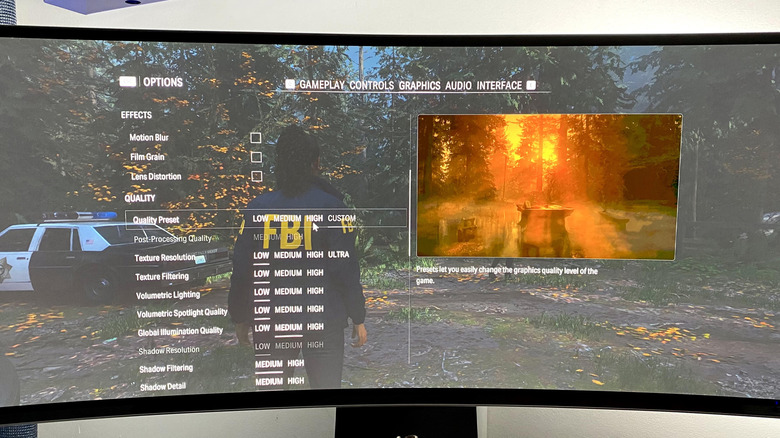
The core issue remains that ray tracing can easily cut a system’s frame rate in half, even on remarkably capable graphics hardware. For players unwilling to tolerate a 50 percent performance penalty, turning the feature off is the most practical solution.
Path tracing pushes these demands even further. Unless a player is operating high-end hardware, path tracing—which handles the entire global lighting, shadow, and reflection ecosystem simultaneously—should generally be avoided. While it is currently limited to a select few titles, including Doom: The Dark Ages alongside Cyberpunk 2077, path tracing can reduce high-end hardware performance to modest frame rates at high resolutions unless advanced upscaling and frame generation tools are actively engaged. Both ray tracing and path tracing deliver breathtaking visual spectacles, but they demand a heavy computational price.