



Phone cameras have evolved into a modern convenience that is all too often taken for granted, making casual photography accessible to millions of people in a lightweight, pocket-sized package. While a smartphone camera generally cannot compete with a dedicated standalone device designed exclusively for capturing professional-grade photos and video, modern mobile technology still allows users to capture remarkably striking images with minimal effort. That accessibility makes it all the more frustrating when those pictures ultimately come out blurry—an enduring and widespread issue for smartphone users across the globe.
While any mobile device is susceptible to taking a blurry photo, the massive global proliferation of the iPhone has naturally led the vast majority of consumer complaints regarding soft or hazy images to center on Apple’s hardware. Fortunately, the iPhone ecosystem features an incredible array of built-in camera settings and configurations designed specifically to avoid blurry pictures, and users do not even need to rely on advanced artificial intelligence features like the AI Clean Up tools found in recent iOS iterations to achieve great results. Whether it is ensuring that the physical lens is immaculate or toggling the correct software settings for low-light environments, achieving sharp mobile photography is largely a matter of understanding the underlying causes and applying the right adjustments.

Why Your iPhone Photos Might Be Blurry
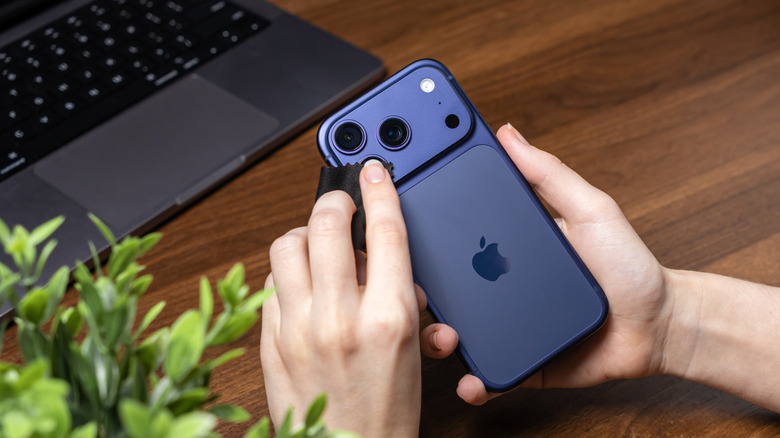
Before altering any internal software settings or diving deep into configuration menus, users must first investigate whether a physical obstruction on the hardware itself is causing the issue. If a camera lens is smudged with fingerprints, natural skin oils, or pocket lint, simply wiping it hastily with a rough tissue paper or the hem of a shirt will often only exacerbate the problem by smearing the debris further or scratching the protective glass. Instead, experts recommend removing the protective phone case entirely, retrieving a clean microfiber cloth, and gently wiping down the lens surface. For persistent marks or stubborn residue, a very light dab of distilled water can be applied directly to the microfiber cloth—never sprayed or poured straight onto the camera lens itself—before wiping the glass gently to restore clarity.
Addressing the physical cleanliness of the lens is merely the first step, however, as a significant volume of iPhone footage and digital photographs still frequently turn out blocky, indistinct, or lacking the crispness that users expect. The next major factor to evaluate is the ambient lighting level of the scene, which stands as the primary culprit behind the vast majority of compromised shots. Low ambient light levels inherently make it significantly more difficult for autofocus systems to lock on reliably and consistently. Furthermore, dim environments frequently force the camera software to employ slower shutter speeds and introduce higher levels of digital noise to properly expose the frame. All of these compounding optical challenges can leave photos and videos looking hazy, grainy, or compressed once processed by the device. For anyone looking to genuinely improve their mobile photography output, managing and adapting to low-light conditions is an essential requirement.

Which Settings to Change for Less Blurry Photos and Videos
Once physical and environmental factors are accounted for, users can turn their attention to the internal camera configuration menus located within the main system settings. Navigating to the camera preferences allows owners to adjust fundamental parameters, such as the capture resolution and frame rate. While various options exist depending on the specific hardware generation, shooting at resolutions higher than standard definition generally produces noticeably crisper baseline image quality. However, some of the most effective features for combating blur are embedded directly within the native camera interface itself, rather than hidden deep inside the system settings menu.
One such tool is the ability to manually lock the camera focus and exposure. Instead of allowing the automatic software to constantly shift focus across different elements of the frame, users can simply tap and hold on a specific area of the preview screen until the on-screen "AE/AF LOCK" prompt appears, locking both exposure and focus parameters in place. Additionally, for users operating an iPhone 11 or newer, utilizing Night Mode—which is visually indicated by a small moon icon at the top of the camera interface—can dramatically alter low-light performance. While Night Mode typically engages automatically in dim environments, understanding its behavior allows users to hold the device steady as the software brightens the scene and captures multiple exposures to synthesize a significantly more detailed final image.
When advanced shooting scenarios demand manual intervention with shutter speeds and ISO sensitivity levels, the limitations of the default camera app often become apparent. Slower shutter speeds can easily introduce unintended motion blur if the phone moves during capture, while higher ISO settings naturally increase visible digital noise and degrade overall clarity. To navigate these intricate photographic compromises, users frequently turn to third-party applications like Camera+. These specialized utilities unlock granular, minute controls over the camera hardware, providing a distinct advantage—particularly for individuals using slightly older device models that lack the latest automated computational photography algorithms.
Beyond digital software tools and third-party applications, serious mobile photographers should also consider utilizing physical hardware accessories, such as a sturdy tripod, to completely stabilize their shots. A reliable tripod keeps the iPhone completely stationary during prolonged exposure times, effectively eliminating the micro-movements and natural hand tremors that can otherwise turn minor adjustments into highly visible blur, particularly when shooting in demanding low-light environments where stability is paramount.