


Apple Music has steadily grown to become one of the premier music streaming services available on the market today, capturing a massive audience of dedicated audiophiles and casual listeners alike. While the platform is naturally celebrated for its deep integration within the broader Apple ecosystem, its appeal extends far beyond macOS and iOS devices. Today, users can easily access their accounts, curate playlists, and stream millions of tracks across a remarkably diverse array of hardware, including Android smartphones, Windows-powered personal computers, and modern smart television sets.
However, jumping between multiple platforms can occasionally introduce frustrating friction for everyday users. A frequent issue arises when subscribers sign into their accounts on a newly acquired or secondary device, only to discover that their carefully curated music libraries, personal playlists, and saved albums have failed to appear automatically. This disconnect can make the platform feel disjointed, leaving users under the impression that they must manually rebuild or organize their collections on every separate piece of hardware they own. Fortunately, resolving this issue does not require technical wizardry or tedious file management; rather, it typically depends on a single, vital software toggle designed to harmonize user data across the entire network of connected devices.
How to Turn on Sync Library on Apple Music
When personal music collections fail to populate across different pieces of hardware, the root cause frequently points toward account discrepancies. Ensuring that the correct credentials are in use across every terminal is the logical first step in troubleshooting synchronization anomalies. Users can quickly verify their active login credentials by launching the Apple Music application, navigating to the primary home interface, and tapping or clicking on their designated profile picture. If the associated email address or user account identifier differs on the unsynced machine, logging out of the secondary profile and re-authenticating with the primary Apple Account will usually resolve the underlying mismatch.
Once account consistency has been established, the next critical measure involves verifying that the native synchronization functionality is actively enabled within the application preferences. On mobile Apple hardware such as iPhones and iPads, the process requires navigating through the primary system settings menu, locating the dedicated application management section, and accessing the music preferences to activate the master synchronization toggle. Desktop users operating on macOS computers can achieve the same result by launching the native music application, accessing the system settings through the top menu bar under the primary application header, and ensuring that the library synchronization checkbox is properly marked within the general preferences panel before saving the configuration.
For subscribers utilizing Windows personal computers, the workflow remains remarkably similar, though the preference panel is accessed by interacting with a designated menu button featuring three horizontal dots within the software interface. Meanwhile, users operating within the Android ecosystem generally find this capability enabled by default upon initial sign-in, requiring virtually no manual intervention to maintain parity with other hardware. Regardless of the operating system in use, individuals should anticipate that initial synchronization cycles may require varying amounts of time to complete. Large music libraries containing extensive catalogs of uploaded tracks, personal playlists, and saved albums naturally demand additional processing time to download metadata and match tracks against Apple’s cloud servers, making patience and maintaining an active application window essential during the first operational run.
What to Do When Apple Music Won’t Sync
Even when all preliminary settings appear correctly configured, occasional synchronization hiccups can still stall the seamless transfer of data between a user’s personal library and Apple’s cloud infrastructure. Desktop applications on both macOS and Windows platforms provide a specialized manual override to force a connection check. Within the macOS music application, users can access the primary file menu, locate the library submenu, and select the dedicated command to update the cloud library. This action compels the software to re-examine the local database, communicate directly with Apple’s servers, and pull down any pending updates or missing metadata entries. While this particular manual command is absent from the mobile iterations of the software on iOS and Android, desktop applications utilize it as a reliable diagnostic tool.
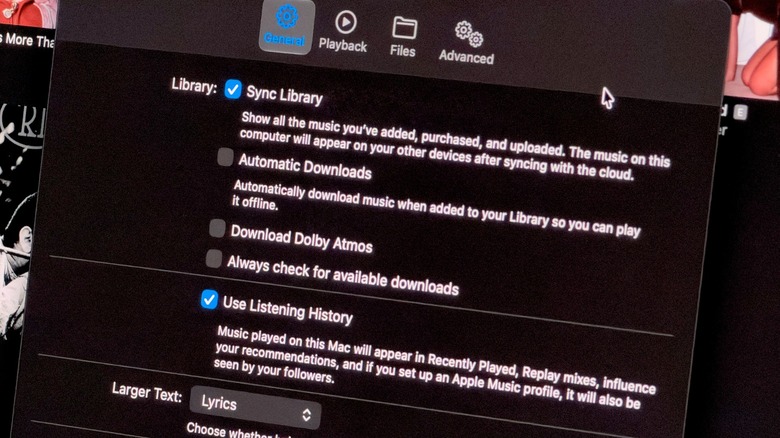
Environmental factors can also impede synchronization performance without the user immediately realizing it. Mobile devices operating under strict power-saving protocols or lacking a stable, high-speed wireless connection frequently suspend background data transfers to preserve battery longevity and cellular data limits. Ensuring that devices are connected to a robust Wi-Fi network and disabled from low-power modes can instantly restore normal background activity. When standard troubleshooting steps fail to yield results, a hard reset of the synchronization feature is often recommended. This involves navigating back to the application preferences, toggling the library synchronization setting off, waiting a brief moment, and turning it back on to re-establish a clean handshake with the server. In more persistent scenarios, completely signing out of the overarching Apple Account and logging back in can clear lingering authentication bottlenecks.
For individuals who do not maintain an active subscription to Apple Music but instead rely on a locally stored, offline library managed entirely through desktop software, cloud-based synchronization methods do not apply. In these specific instances, users must manually transfer their physical music directories between computers using traditional storage media or file-sharing protocols, relying on legacy applications or modern device management utilities to keep their local collections unified. Beyond the mechanics of library synchronization, exploring additional application settings can significantly enhance the overall listening experience. Audiophiles and casual listeners alike often take advantage of complementary preferences available within the menu systems, such as adjusting streaming and download parameters to activate lossless audio quality, ensuring that both the management and playback of digital music meet the highest possible standards across every connected screen and speaker.