



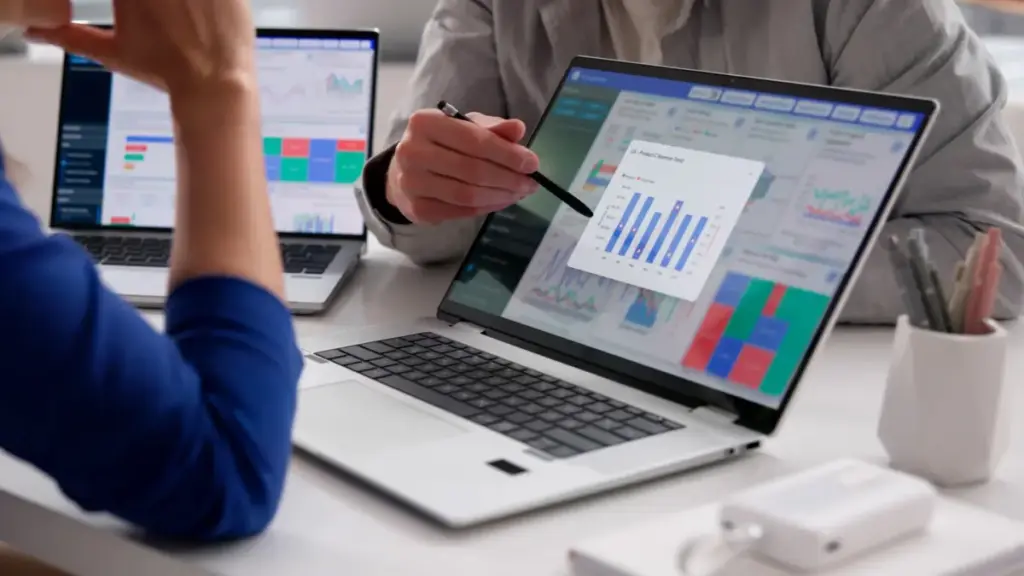
Adding a second monitor remains one of the most effective ways to upgrade a home office or mobile workstation. Whether an individual is gaming, managing spreadsheets, or simply browsing the web, dual screens drastically improve productivity by expanding available workspace. Mirroring a display shows the exact same desktop on both screens—a helpful feature for presentations—while extending the display creates a single, wider desktop canvas. This extra screen real estate allows users to keep more tabs visible, multitask with ease, and streamline complex workflows.
However, making this change does not necessarily require purchasing an expensive dedicated monitor or investing in a fancy multi-display setup. Consumers who have a spare laptop sitting idle in a drawer or closet can make a few software tweaks to utilize dual monitors without going all-in on brand-new hardware. Converting a secondary device into an extra screen is fairly straightforward, though it is not quite as simple as plugging in a standard HDMI cable and expecting an immediate connection.
Achieving a seamless dual-screen setup requires checking a computer’s compatibility, weighing the pros and cons of wired versus wireless options, and adjusting internal system settings to smoothly extend or mirror the display. The methods vary depending on whether the machines run Windows, macOS, or Linux, and alternative wired options exist for those who want to avoid wireless lag.
How to Use a Windows Laptop as a Second Monitor
When both the primary computer and the spare laptop run Windows 10 or Windows 11, extending or mirroring the displays becomes remarkably simple thanks to built-in wireless casting tools. These features rely on Miracast, a standard technology that enables direct device-to-device connections over a local Wi-Fi network.
To activate the feature on the spare laptop, users must open the system settings, navigate through the system menu, and locate the projection settings. By accessing optional features, users can add the Wireless Display capability to the operating system. Once installed, the system allows the connection to be configured for availability anywhere, after which the dedicated Wireless Display application can be launched.
After completing this initial setup on the secondary machine, the primary computer can establish the connection by utilizing a simple keyboard shortcut to project the screen. Selecting the spare laptop from the list of available wireless displays prompts for a PIN, while also granting permission for keyboard and mouse input from the main machine. Users can then toggle between duplicating the screen or extending the desktop workspace, switching modes whenever necessary.
While this wireless method offers a convenient way to organize numerous tabs or run presentations without extra cables, it does require a steady Wi-Fi connection on both machines. Because wireless streaming can introduce minor latency, this approach may not provide the ultra-responsive performance required for fast-paced competitive gaming.
Cross-Platform Solutions and Operating System Compatibility
Connecting devices running different operating systems requires alternative approaches. For users operating entirely within the Apple ecosystem, AirPlay offers a native wireless bridge between two MacBooks, provided the secondary laptop is a 2018 model or newer.

By configuring the receiving MacBook’s general settings and enabling AirPlay reception for the current user, both devices can link seamlessly as long as they share the same Apple ID. The primary Mac can then access the display settings menu to add the secondary device from the dropdown list, choosing between a mirrored or extended layout. Much like the Windows equivalent, Apple’s AirPlay operates over Wi-Fi and can occasionally exhibit a slight delay.
For cross-platform scenarios—such as pairing a Windows PC with a MacBook, or integrating a Linux machine—users often turn to third-party utility software like Deskreen. This free, open-source tool operates over a local Wi-Fi network by letting the primary computer generate a secure QR code and URL. Opening that URL in the spare laptop’s web browser bridges the two machines instantly.
By default, Deskreen mirrors the primary display. Transforming that mirrored output into an extended desktop requires a small workaround, typically involving an inexpensive virtual display adapter, commonly referred to as a "dummy plug," inserted into the main computer’s video port. As with any wireless connection method, software solutions running over Wi-Fi are subject to minor latency, prompting some users to seek out wired hardware alternatives.
Overcoming HDMI Limitations with Hardware Workarounds
Connecting two laptops directly with a standard HDMI cable generally fails to achieve a dual-monitor setup because the vast majority of laptop HDMI ports are configured strictly for video output rather than video input. Plugging a cord directly from one laptop to another will not allow either machine to recognize the other as an active display.
To bypass this hardware limitation, tech-savvy users often employ an HDMI-to-USB video capture card. By running an HDMI cable from the primary device into the capture card, and then plugging the USB end of the card into the spare laptop, the secondary machine can ingest the video feed from the main computer.
In this configuration, the capture card essentially functions as an external webcam. Users can view the incoming desktop feed directly through the laptop’s built-in camera application or utilize free, cross-platform broadcasting software like OBS Studio, which operates smoothly across Windows, Mac, and Linux environments.
This same hardware setup can double as a way to connect video game consoles like a PlayStation or Nintendo Switch directly to a laptop screen when a television is unavailable. While capture cards can introduce a minimal amount of lag, the response time is typically much faster and more reliable than purely wireless Wi-Fi connections, making it viable for casual gaming and daily productivity.
For individuals who ultimately decide that repurposing an old laptop as a monitor is not worth the configuration effort, technology experts note that older portables can still serve alternative practical roles around the house, such as acting as a centralized smart home automation hub.