


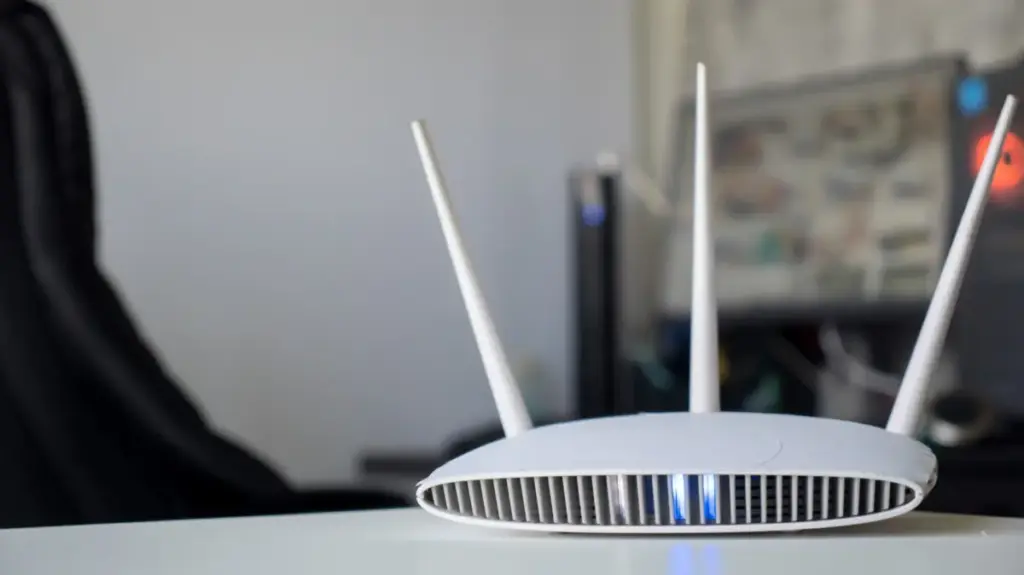
The front of a modern Netgear router is often dotted with a dizzying array of flashing lights, symbols, and tiny indicators. While a few of these indicators, such as the basic power symbol, are relatively straightforward to understand, the broader light panel can frequently feel like a cryptographic puzzle. Depending on the device, these lights vary across a spectrum of colors, transitioning from solid glows to erratic blinking patterns. For anyone who has never cracked open the physical instruction manual or navigated the digital documentation, deciphering what each individual light represents does not come naturally, transforming a simple piece of home infrastructure into an intimidating glowing monolith.
Understanding what each indicator on a Netgear router signifies remains an essential part of basic home network troubleshooting, ensuring that your broadband connection is operating at peak efficiency, and verifying that hardware is functioning precisely as intended. Although some indicators carry far more weight than others during daily use, every single light serves a distinct operational purpose. Whether you rely on a standard standalone router or one of the company’s advanced mesh Wi-Fi systems deployed across a sprawling multi-story residence, learning to interpret the visual cues emitted by your Netgear hardware can save hours of digital frustration.
The Most Important Lights on Your Netgear Router
When evaluating the health of your home network, certain indicators on the chassis demand immediate attention. These primary lights serve as the vital signs of your digital infrastructure, conveying critical operational parameters such as power delivery and overall internet connection stability.
The power LED, universally represented by the classic universal power symbol, provides immediate feedback regarding the device’s electrical status as well as its internal firmware operations. Unsurprisingly, this specific light remains completely unilluminated if the router is not receiving power from the wall outlet or if the power supply unit has failed. When troubleshooting a home network experiencing a complete blackout of connectivity, a quick glance at the power LED is always the logical starting point. If the router fails to operate properly under normal conditions, a standard power cycle—unplugging the device for ten seconds and plugging it back in—is typically the first corrective measure recommended by support technicians. In scenarios where the hardware becomes entirely unresponsive and refuses to boot into a stable state, a more drastic factory reset via the physical pinhole button on the back may be required to restore baseline operations.
Moving past the basic power state, the internet LED represents another cornerstone of the routing hardware. Typically designated by an icon featuring a small circle orbiting a larger structural graphic, this specific light communicates the real-time status of your wide area network connection. It bridges the gap between your local devices and the wider digital world, signaling whether the router is actively communicating with your Internet Service Provider.
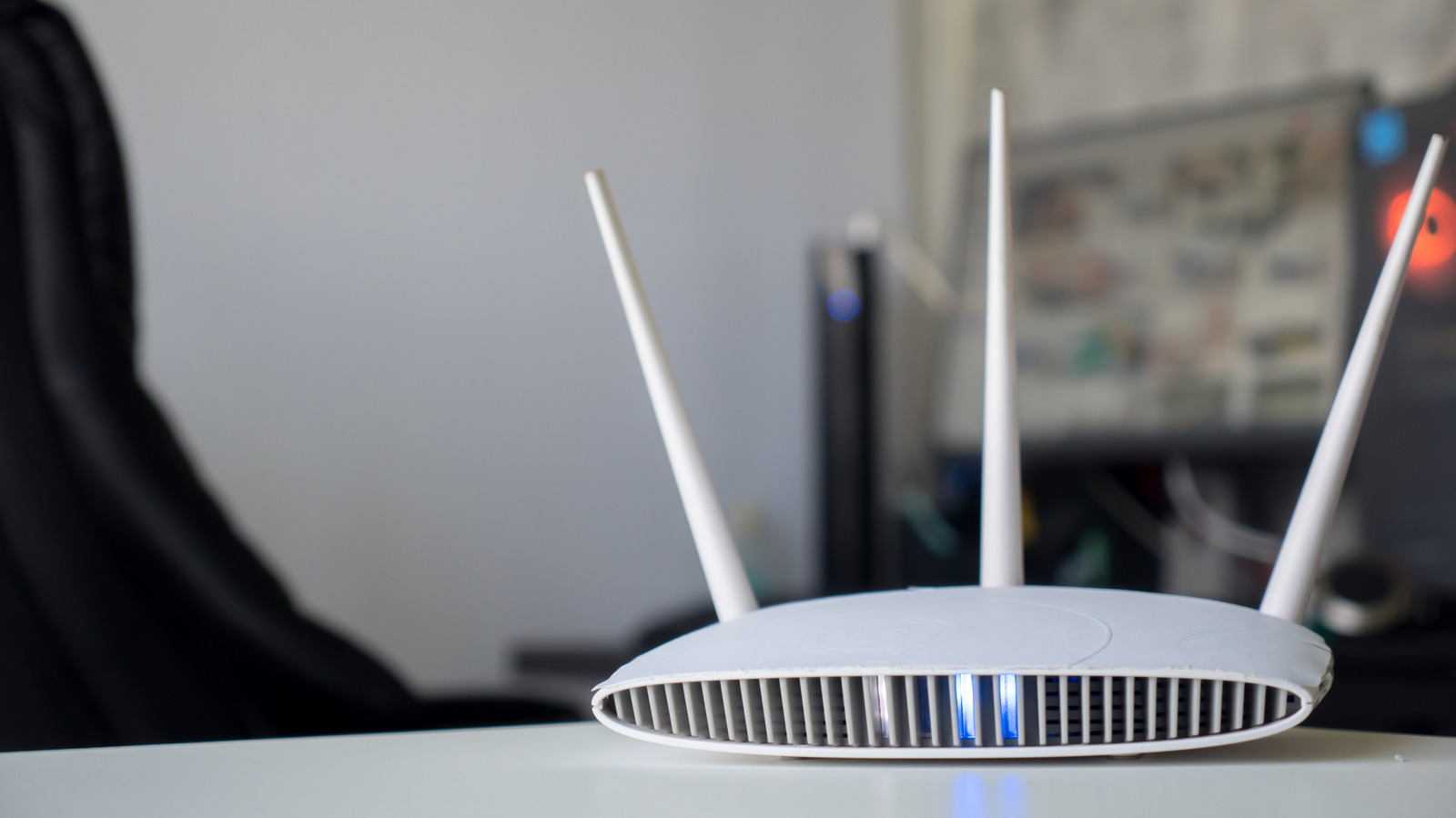
Closely tied to this is the Wi-Fi LED, which is usually depicted by a small central dot flanked by radiating curved lines on either side. This particular indicator illuminates general wireless traffic flowing through the unit. When heavy data transfers occur—such as downloading large files, streaming high-definition video to a smart television, or engaging in competitive online gaming—this light will often flicker dynamically to reflect the active transmission of packets across the wireless spectrum.
Other Lights on Your Netgear Router
Beyond the fundamental power and internet indicators, a Netgear router features several secondary lights. While these may not be scrutinized on a daily basis, they prove exceptionally useful when performing targeted troubleshooting or when physical peripherals are connected directly to the chassis ports.
Modern routers incorporate dedicated Wi-Fi band LEDs to represent the various frequency spectrums utilized for wireless communication. Historically, dual-band routers featured distinct lights for the traditional 2.4GHz and 5GHz bands, which have served as the foundation of home networking for years. With the introduction of newer hardware standards like Wi-Fi 6E and Wi-Fi 7, users will frequently encounter an additional 6GHz band light designed to showcase activity on the ultra-fast modern spectrum. While the physical behavior of these lights varies depending on whether a specific band is currently handling traffic, they adhere to a consistent color-coding philosophy across the board.
For users who leverage the physical expansion capabilities of their routing hardware, USB LEDs provide direct feedback regarding external storage drives or network-attached peripherals. Typically marked with the universal trident USB symbol or clear text indicating a USB 3.0 port, these lights illuminate when a compatible storage device or printer is successfully recognized and mounted by the router’s internal operating system, indicating that network sharing protocols are active and accessible to connected clients.
Ethernet LEDs, which line the rear or front panel depending on the exact hardware model, are clearly labeled with numerical designations corresponding to the physical LAN ports on the device. The color emitted by these specific port indicators directly reflects the negotiated link speed of the attached wired client. Typically, a crisp white or green illumination signifies a high-speed gigabit connection operating at 1 Gbps, whereas an amber or yellow hue denotes a legacy or restricted connection speed operating at slower 100 Mbps or 10 Mbps thresholds, often pointing toward an older cable or a constrained network interface card on the receiving computer.
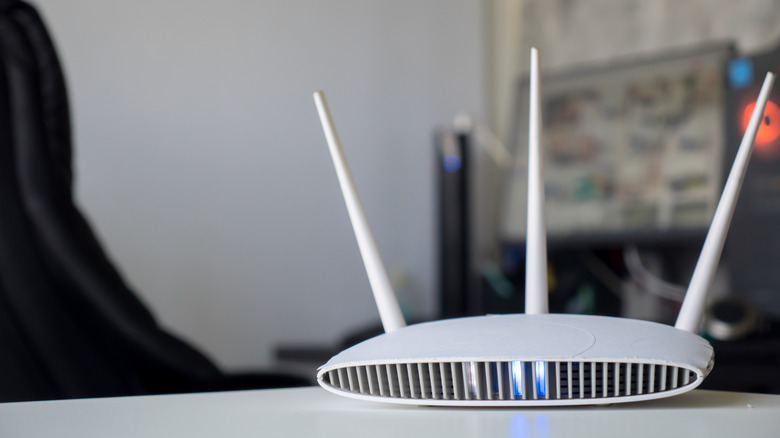
Finally, the WPS LED—often illustrated by a stylized router emitting radiating signal waves—indicates the operational status of Wi-Fi Protected Setup. This feature allows users to bridge new wireless devices to the local network quickly without manually entering a lengthy Wi-Fi password. However, security professionals often advise disabling this specific feature within the router’s administrative dashboard to maintain optimal network defense and prevent unauthorized physical or proximity-based access attempts.
Reading the Lights on a Netgear Orbi Mesh System
The visual design language implemented across Netgear’s Orbi Wi-Fi mesh systems differs significantly from the traditional multi-indicator layout found on standard standalone routers. Orbi hardware opts for a much more minimalist aesthetic, utilizing a single, multi-colored status light integrated into the bottom-front chassis of the device, supplemented by a secondary indicator located on the rear panel. This streamlined approach divides responsibilities cleanly, with the prominent front light dedicated entirely to real-time connection status and mesh synchronization, while the rear light remains tied directly to the fundamental power delivery and low-level firmware state of the node.
By interpreting these minimalist cues, users can instantly determine whether their satellite nodes are maintaining a robust backhaul connection to the primary router or if spatial interference is degrading the overall mesh network performance throughout a home.