



Unlike many consumer electronics that seem designed to fail or become obsolete within a few short years, Wi-Fi routers occupy a strange space in the modern household. Most people rarely think about upgrading their router until a complete failure occurs, and because these devices can maintain basic operations for a surprisingly long time, it is easy to overlook when they stop receiving firmware updates or fail to support the latest Wi-Fi standards. This reality can make purchasing a brand-new router a frustrating dilemma, as discarding a perfectly functioning piece of hardware feels inherently wasteful.
Fortunately, homeowners do not need to contribute to the growing electronic waste crisis. Older routers possess a tremendous amount of untapped networking potential and can easily be repurposed to serve as secondary or tertiary devices on a home network. While newer models certainly offer superior security features, wider broadcast ranges, and faster performance—making them the ideal choice for a primary gateway—older routers benefit from the fact that foundational networking principles have remained largely unchanged for decades. Instead of sending an aging router off to a landfill or a recycling center, consumers have multiple practical avenues to give their outdated hardware a valuable second life.
Turn Your Old Router into a Wi-Fi Repeater or Mesh Node
If a household’s primary Wi-Fi router struggles to deliver a reliable signal to remote corners of the house, homeowners can bypass the need to purchase an expensive wireless range extender or other single-purpose hardware by deploying their old router as a dedicated access point.
When expanding wireless coverage using legacy hardware, network administrators generally choose between a wired or a wireless approach. A wired connection guarantees maximum stability and fast data speeds, but it requires running an Ethernet line all the way back to the primary router. For many households, pulling physical cables through walls or across multiple rooms is simply not practical.

Deploying two wireless signals in close proximity carries its own set of challenges, as overlapping frequencies can cause severe wireless interference and degrade overall network performance. Network experts suggest mitigating this congestion by disabling specific frequencies on both routers. A reliable strategy involves configuring the older router to broadcast exclusively on the 2.4GHz band while disabling that same frequency on the newer primary router. This approach leverages the physical characteristic of 2.4GHz signals to penetrate walls and solid obstructions much more effectively than higher frequencies, whereas the vast majority of wireless improvements over the past decade have focused on high-speed bands like 5GHz and 6GHz.
Many standard routers natively support wireless repeater or bridge functionality, a feature typically located within the device administrative panel or product manual. On older TP-Link models, for instance, this capability is often housed within nested sub-menus under the Wireless Distribution System, or WDS, bridging label. The primary drawback to a purely wireless bridge approach is that the secondary router must dedicate a portion of its limited wireless capacity strictly to communicating with the main router, which ultimately translates to slower real-world connection speeds for devices linked to the secondary unit.
A smaller subset of routers can also function as unified mesh Wi-Fi nodes. Networking brands like Asus incorporate features such as AiMesh into their hardware ecosystems, allowing users to mix and match different hardware models to construct a single, seamless network layout. Consumers who have not yet purchased a replacement router can check if their current legacy device supports this capability, then buy a new model from the same product family to effortlessly build a cohesive whole-home mesh system.
Use the LAN Ports for an Easy Network Switch
Households facing a shortage of physical LAN ports on their primary router—particularly for high-bandwidth equipment like smart televisions, desktop computers, and video game consoles—can easily transform their old router into a functional network switch. Basic standalone network switches are inexpensive, but utilizing a redundant router eliminates the need to purchase yet another single-use gadget.
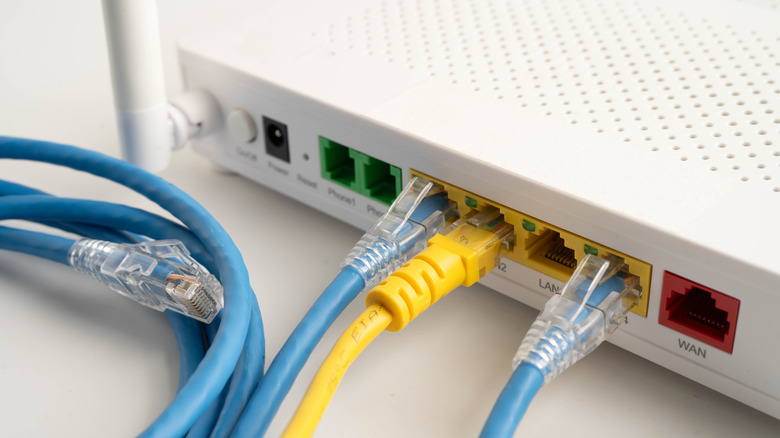
Configuring a router to operate in switch mode is a straightforward process. An administrator simply runs an Ethernet cable from a LAN port on the new router to a LAN port on the old router, then plugs local devices directly into the remaining open LAN ports on the legacy device. A critical rule in this setup is to ensure that nothing is ever plugged into the old router’s Wide Area Network, or WAN, port.

Many commercial routers include dedicated Access Point or Switch modes inside their administrative settings menu, which can be activated directly through the web-based management portal. If a specific model lacks an automated mode toggle, administrators can achieve the same result manually by disabling the router’s Dynamic Host Configuration Protocol server alongside other routing features like the internal firewall and Network Address Translation services.
The same precautions regarding wireless congestion apply here. If a user only requires the physical Ethernet ports on the legacy device, disabling all wireless broadcasting functions on the old router prevents unnecessary frequency pollution within the home.
Create File and Print Servers for Wireless Convenience
A frequently overlooked hardware feature on many consumer routers is the inclusion of a standard USB port. This unassuming port opens the door to several practical applications, including the attachment of external storage drives or legacy printers.
Connecting an older printer that lacks native Wi-Fi connectivity to a router’s USB port creates an instant print server, enabling users to initiate print jobs wirelessly from any device connected to the home network. This workaround breathes new life into functional office hardware that would otherwise require direct physical attachment to a computer.
Similarly, plugging a portable thumb drive or an external hard drive into the router transforms the device into a rudimentary local storage server. This configuration allows any computer or mobile device on the network to read from and write to the shared drive. While dedicated Network-Attached Storage enclosures and specialized hard drives represent a significant financial investment, repurposing an old router provides an inexpensive entry point into network storage. Users must keep in mind, however, that standard consumer routers do not incorporate advanced drive redundancy or automated backup features found in true NAS devices, and the onboard USB ports on older routers are rarely designed for high-speed data transfers.
To maximize this feature, administrators should explore the USB device sharing configurations located within the router’s administrative dashboard after connecting the hardware.
Turn It into a Dedicated VPN Router
While modern routers increasingly offer built-in Virtual Private Network capabilities, routing all household internet traffic through a continuous encryption tunnel can introduce performance bottlenecks or hardware strain. Installing a VPN application directly onto individual consumer devices is an alternative, but running background encryption clients continuously can drain battery life on mobile devices over extended periods.
Repurposing an old router to act as a dedicated VPN client offers a compelling solution. By establishing a secondary router that operates independently from the primary network, users can route specific traffic through the secure tunnel only when needed, sparing primary devices from the computational workload and avoiding the need to manage software clients on every gadget in the house.
While exact configuration steps differ depending on the VPN service provider and the hardware manufacturer, the general implementation process involves connecting the old router to the primary unit and activating access point mode. From there, administrators locate the VPN settings within the administrative control panel, enable the feature, and input their account credentials.
Install Custom Firmware for Maximum Flexibility
At their core, routers are specialized, low-power computers that pair an efficient central processing unit with modest amounts of random-access memory and flash storage. They traditionally ship from manufacturers pre-installed with lightweight operating systems tailored explicitly for packet routing and basic network management. This design philosophy creates vulnerabilities when manufacturers eventually drop firmware support for older models, or when the restrictive nature of the stock software prevents advanced users from tailoring the device to their specific needs.

To combat planned obsolescence, dedicated open-source software communities have developed alternative, custom firmware packages specifically engineered for consumer networking hardware. Projects like OpenWRT replace a manufacturer’s proprietary operating system with a highly flexible, open-source platform that grants deep administrative control over the underlying hardware, including the capability to run third-party software packages like torrent clients.
Custom firmware platforms serve as an effective mechanism to extend the operational lifespan of aging networking hardware. Furthermore, many of the advanced configurations detailed above become significantly easier to deploy and manage when utilizing alternative operating systems like DD-WRT or FreshTomato. Open-source advocates frequently favor platforms like OpenWRT for their lack of artificial software restrictions compared to default vendor interfaces.
The primary limitation of adopting custom firmware is hardware compatibility. Because the consumer router market is heavily fragmented across thousands of distinct models, users must thoroughly consult official project documentation and device compatibility lists before attempting any software modifications on their specific equipment.