

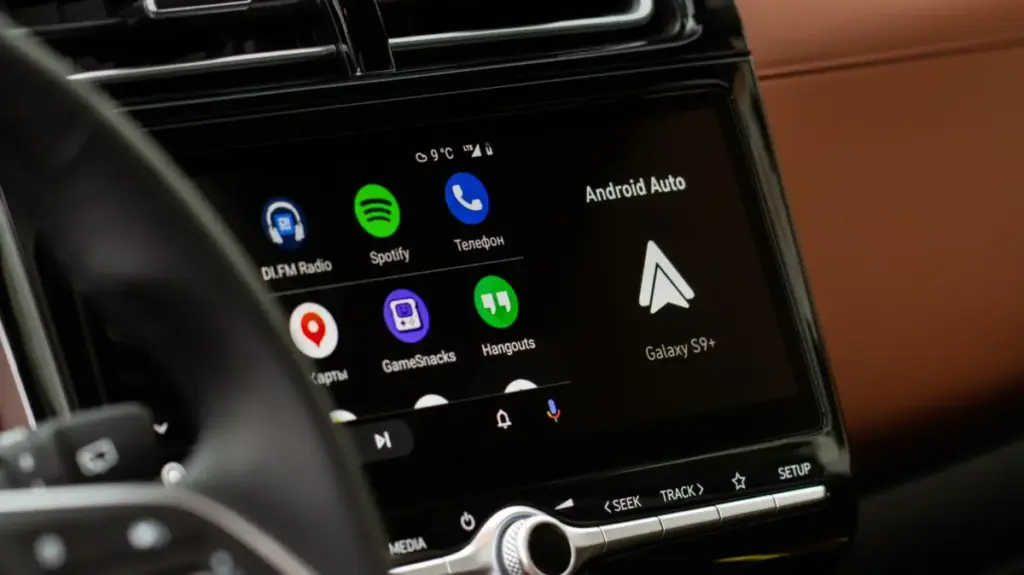
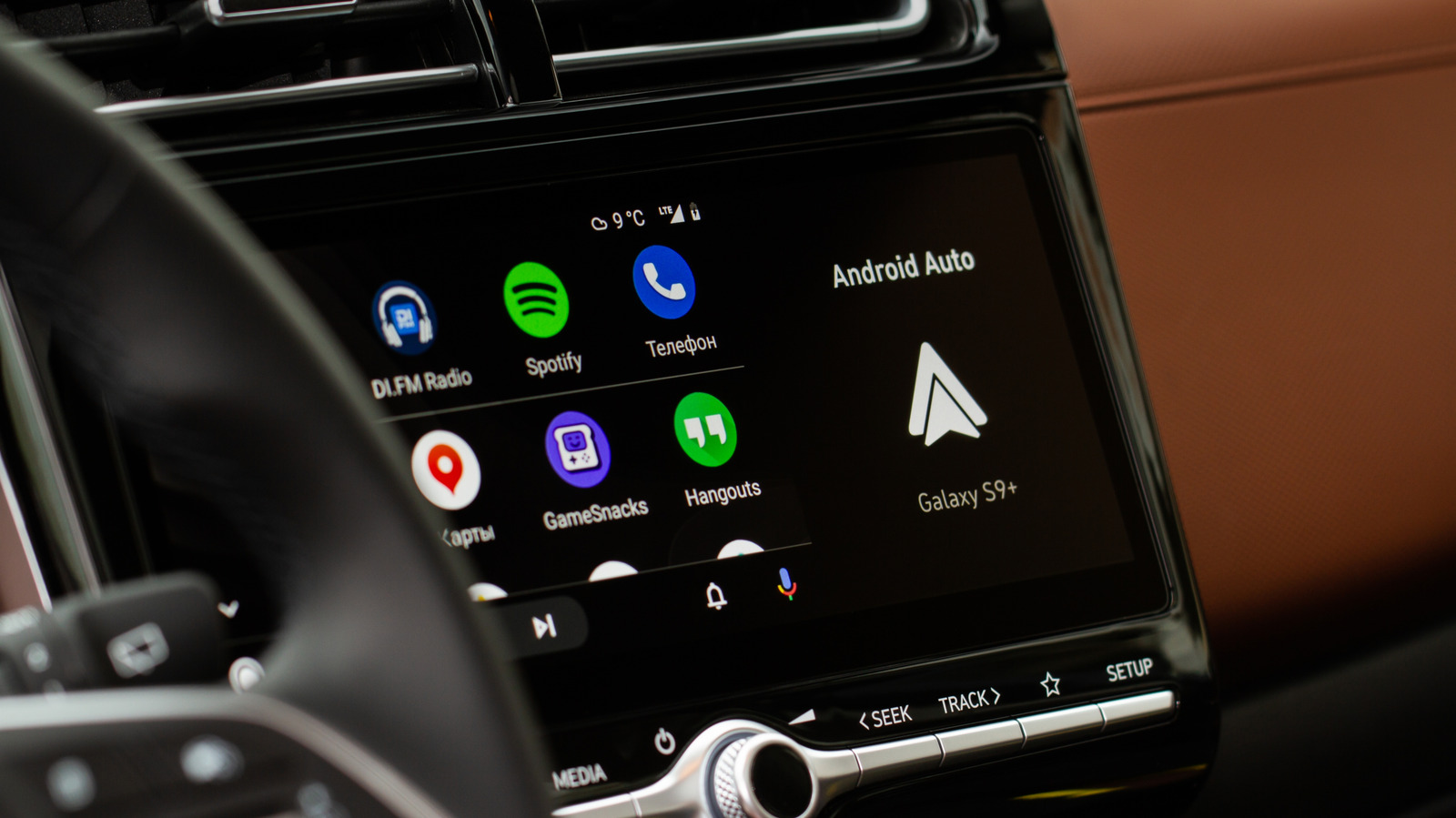
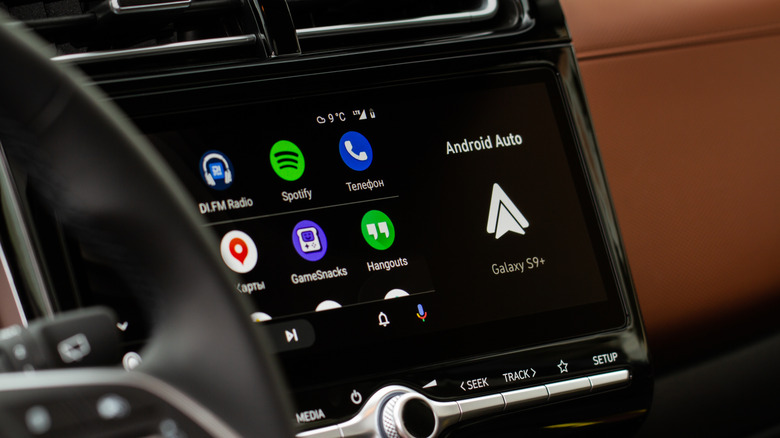
If you have ever started your vehicle only to be abruptly blasted by music you did not ask for, you already know the distinct frustration of Android Auto’s persistent autoplay quirk. The moment your mobile device establishes a connection—whether through a physical USB cable or wirelessly, even if you rely on a third-party wireless adapter—your last active playlist, podcast, or audiobook automatically picks up right where it left off. Furthermore, it resumes playing at whatever volume level you happened to set the last time you were driving.
For many motorists, this unexpected burst of sound serves as an unwelcome surprise during an early morning commute or a genuine distraction when you simply prefer a few quiet moments before pulling out of the driveway. Depending entirely on the specific music, comedy routines, or true-crime audiobooks you were listening to during your last solo trip, it may also present content you certainly do not want your children to hear when you are dropping them off at school.
In the past, resolving this recurring headache proved remarkably difficult. It routinely required a frustrating array of workarounds, the installation of extra third-party apps, and jumping through technical hoops that everyday drivers simply should not have to navigate just to maintain control over their car stereo. Fortunately, addressing the problem has become significantly more straightforward, often requiring little more than flipping a single software toggle hidden away within your device menus.
How do I stop audio from auto-playing on Android Auto?
To tackle the root of the problem, drivers must first look directly within Android Auto’s native configuration settings. By navigating through your phone’s main configuration menus to reach Connected Devices and then selecting Android Auto, you can scroll down until you locate the Startup section. Embedded within this specific area is the vital toggle switch responsible for controlling the Start music automatically feature. If you find yourself having trouble locating these menus through standard navigation, utilizing the search bar within your phone settings to look up Android Auto will get you there much faster.
Switching this specific feature off sends a clear directive to the software, instructing Android Auto not to automatically resume media playback the exact second it establishes a digital handshake with your vehicle. For a vast majority of drivers, completing this single step completely resolves the issue, which explains why it consistently ranks as the primary troubleshooting recommendation found across official community support forums, including those hosted by Spotify.
Despite this fix, however, some motorists report that disabling the setting fails to solve the issue entirely. When that happens, the underlying cause may actually reside at the Bluetooth connection level rather than inside the Android Auto application itself. Because Android Auto relies on Bluetooth technology to route phone calls and facilitate the initial pairing handshake between a smartphone and a vehicle’s infotainment system, it can inadvertently trigger media streams. One common troubleshooting workaround involves completely removing your phone from your car’s stored Bluetooth memory and attempting to reconnect exclusively via a USB cable, provided your particular vehicle setup supports a wired-only connection. In various vehicles, sticking to a strictly wired connection can significantly reduce unwanted playback triggers, though the overall results tend to vary wildly depending on the specific make and model of the car, the brand of the phone, and the exact connection type.
Why does Spotify keep auto-playing in my car?
If you have already thoroughly disabled the automatic music startup feature within your system preferences and find that Spotify continues to launch and play tracks entirely on its own, rest assured that you are not imagining things. Spotify users have persistently reported this exact erratic behavior across public community forums for years, with discussion threads dating back to 2022 remaining remarkably active to this day.
However, tech experts point out that your car may not always be the primary culprit behind the phantom audio playback. Any Bluetooth-enabled peripheral paired with your smartphone—ranging from wireless headphones and portable speakers to smart home displays—can actively influence how and when media playback resumes. According to official statements from Spotify’s dedicated customer support teams, this unpredictable behavior depends heavily on how a given Bluetooth hardware device interacts directly with Spotify’s underlying application programming interface, commonly known as an API.
This technical distinction matters immensely because Spotify itself cannot always prevent a newly connected hardware device from transmitting an automated "play" command the moment it reconnects, powers on, or wakes up from an idle media session. Before you cast blame entirely on your smartphone or resort to completely uninstalling and reinstalling the streaming application, it is wise to observe whether the autoplay phenomenon happens exclusively with one specific Bluetooth device. Testing the phone with an alternate speaker, wireless headset, or a different vehicle can help isolate the variable. While keeping your Spotify app, your smartphone’s core operating system, and your hardware device firmware updated to the latest available versions may help minimize random connection glitches, there remains no guaranteed universal fix when the stray playback command originates directly from the external Bluetooth accessory.
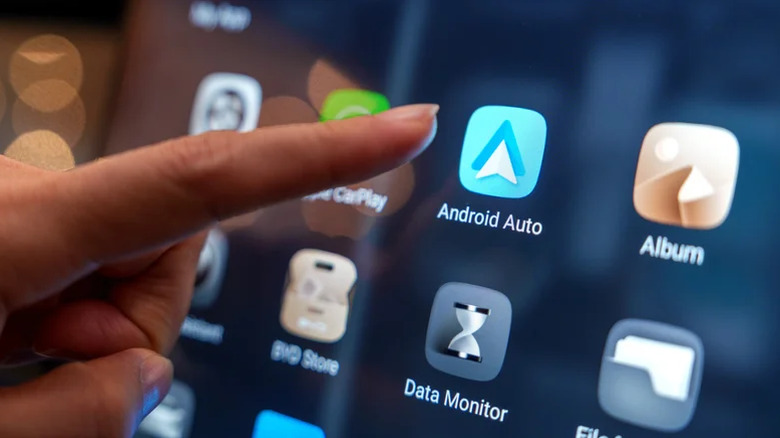
Because streaming platforms like Spotify must prioritize maintaining seamless, frictionless connections across thousands of wildly different hardware combinations and vehicle infotainment architectures, a universal software patch is unlikely to arrive anytime soon. Consequently, motorists often find themselves navigating a patchwork of solutions. Some drivers achieve complete success simply by adjusting Android Auto’s internal settings, others find relief by tinkering with individual app permissions, and a substantial portion report that none of these standard options consistently resolve the issue for their unique combination of car and phone. When absolutely nothing else seems to work, frustrated users occasionally resort to removing Spotify from Android Auto entirely, though doing so naturally means sacrificing the ability to control or access the streaming service directly from the vehicle’s built-in dashboard display.
Ultimately, drivers dealing with uninvited audio playback are advised to begin by locating the Start music automatically toggle within Android Auto, as this straightforward adjustment successfully resolves the annoyance for a large portion of motorists. If music continues to play uninvited despite this adjustment, attempting the Bluetooth unpairing trick serves as a logical next step before taking more drastic measures like stripping the app from your vehicle interface entirely. Given just how inconsistently Bluetooth protocols behave across different automotive manufacturing models and infotainment software versions, approaching the problem with an expectation of minor trial and error remains the most realistic path forward.